
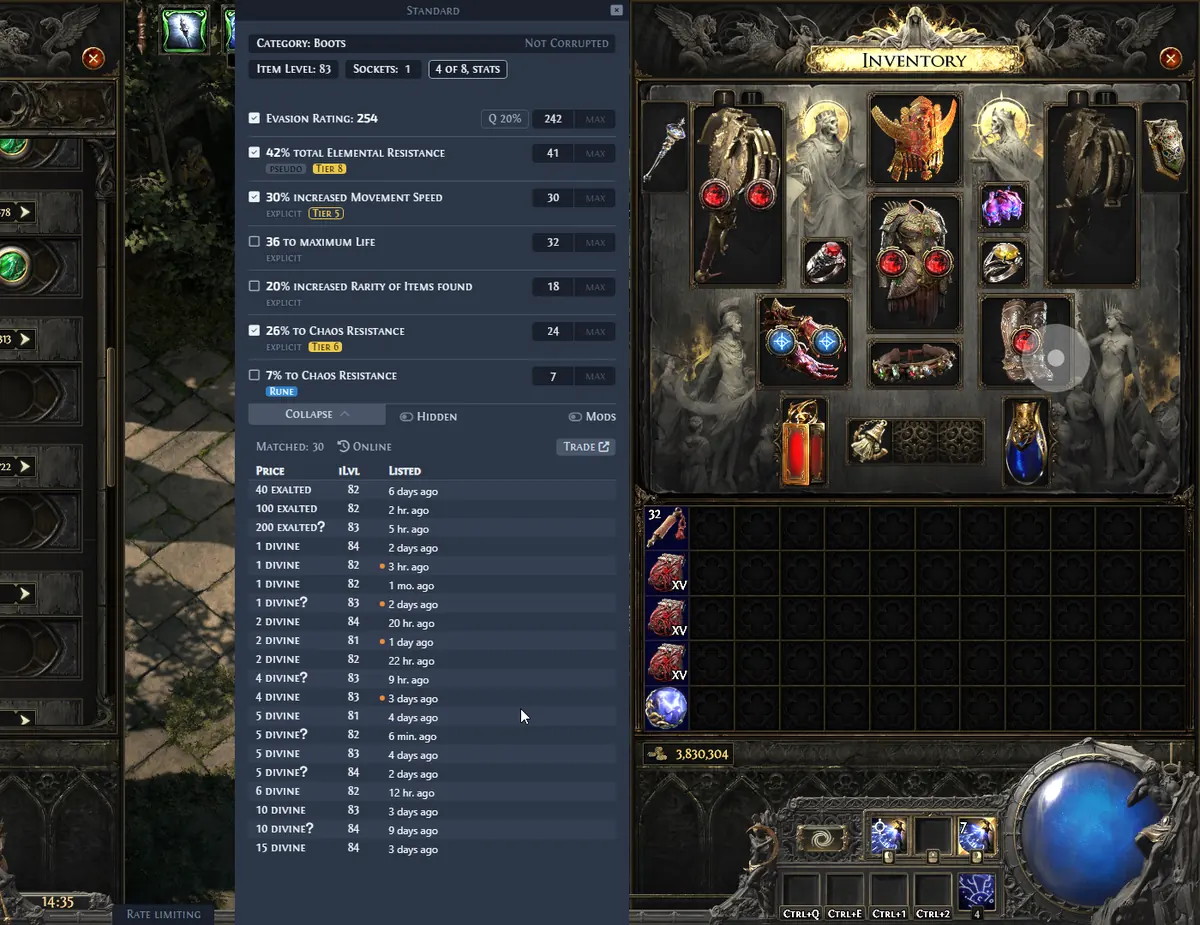
Awakened PoE Trade 2 for Path of Exile 2
The practical answer is Exiled Exchange 2. The official Exiled Exchange 2 repository describes the app as a Path of Exile 2 overlay for price checking and identifies Awakened PoE Trade as its upstream project. That relationship explains the similar shortcut model, clipboard parsing, trade-search workflow, interface concepts, and the name of the migrated apt-data configuration folder.
A fork is not simply a renamed download. Path of Exile 2 has different item classes, modifier data, league behavior, trade endpoints, mechanics, translations, and ongoing update requirements. Installing an old PoE 1 tool and changing a label does not supply that PoE 2 data. Exiled Exchange 2 packages the PoE 2-specific application and is maintained through its own Releases.
Keep both projects associated with the game they target. Awakened PoE Trade remains useful for Path of Exile 1. Exiled Exchange 2 should be launched for Path of Exile 2. Players who use both games can keep both applications installed, but should avoid overlapping global hotkeys and confirm which tray process is running before a price check.
| Area | Awakened PoE Trade | Exiled Exchange 2 |
|---|---|---|
| Primary game | Path of Exile 1 | Path of Exile 2 |
| Project relationship | Upstream project | PoE 2-focused fork |
| Core workflow | Clipboard item parsing and trade search | Clipboard item parsing and PoE 2 trade search |
| Configuration family | apt-data under awakened-poe-trade | apt-data under exiled-exchange-2 |
| Saved window title | Path of Exile | Path of Exile 2 |
| Download source | Its own official repository | Kvan7/Exiled-Exchange-2 Releases |
Prepare before migrating settings
Install and launch Exiled Exchange 2 once before copying data. Then launch Path of Exile 2 and wait until the overlay has identified the game and created its normal data directory. Quit both applications after the initial load. This sequence gives you a real target folder and reduces the chance of copying files while either process is writing configuration.
Back up both the original Awakened PoE Trade data and the new Exiled Exchange 2 data. The migration is meant to preserve preferences such as hotkeys and interface settings, not to merge two running configurations. If a problem occurs, a backup lets you return to a clean Exiled Exchange 2 setup without losing the source configuration.
- Download Exiled Exchange 2 from the official GitHub Release asset, not a source archive.
- Run Exiled Exchange 2 and Path of Exile 2 once before copying settings.
- Quit both overlays and both games before changing config.json.
- Back up the source and destination apt-data folders.
- Record custom global hotkeys in case another application already uses them.
Migrate Awakened PoE Trade settings step by step
On Windows, the relevant folders live under your AppData roaming directory. The source is normally %APPDATA%\awakened-poe-trade\apt-data. The destination is %APPDATA%\exiled-exchange-2\apt-data. File visibility settings can hide AppData, so paste the path into the Windows Run dialog or File Explorer address bar instead of browsing manually.
The most important correction happens after the copy. Awakened PoE Trade can save "windowTitle": "Path of Exile" in config.json. Exiled Exchange 2 needs "windowTitle": "Path of Exile 2". If that value remains unchanged, the migrated overlay can continue looking for PoE 1 and appear broken in PoE 2.
- 1
Create the Exiled Exchange 2 data folder
Run Exiled Exchange 2 and PoE 2, wait for the initial overlay load, then quit both applications completely.
- 2
Open the two AppData locations
Locate
%APPDATA%\awakened-poe-tradeand%APPDATA%\exiled-exchange-2. Make backup copies before replacing anything. - 3
Copy apt-data
Copy the
apt-datadirectory from the Awakened PoE Trade folder into the Exiled Exchange 2 folder. - 4
Edit config.json
Open
%APPDATA%\exiled-exchange-2\apt-data\config.jsonin a plain-text editor and change the saved window title toPath of Exile 2. - 5
Restart and test
Launch Exiled Exchange 2 and PoE 2, press Shift + Space to open the overlay, then run a Ctrl + D price check on a normal inventory item.
Review migrated hotkeys and settings
A successful launch does not guarantee that every inherited preference is sensible for PoE 2. Open the overlay with Shift + Space and review the settings. Confirm the selected league, language, search behavior, update preference, and custom shortcut assignments. Some old options can refer to PoE 1 behavior or conflict with new software installed since the configuration was created.
Default Exiled Exchange 2 price-check shortcuts include Ctrl + D and Ctrl + Alt + D. Discord clip saving, GPU tools, keyboard managers, and AutoHotkey scripts are common sources of global conflicts. Reassign a shortcut rather than running several programs that compete for the same chord.
Fix a migration that still opens for PoE 1
If the overlay starts but does not attach to Path of Exile 2, return to the destination config.json and verify that the exact saved window title includes the number 2. Make sure you edited the file under exiled-exchange-2, not the original Awakened PoE Trade folder or a backup. Save the file as JSON without converting it to a rich-text format.
If the config is valid and the title is correct, test a clean configuration by backing up and temporarily renaming the destination data folder. Launch Exiled Exchange 2 to create new defaults. If the clean setup works, compare settings carefully rather than copying the old folder again. If neither setup works, the problem is more likely display mode, permissions, clipboard access, league loading, or a global shortcut conflict; use the troubleshooting guide and Debug logs.
- Confirm you edited the destination config under exiled-exchange-2.
- Validate that config.json remains valid JSON after editing.
- Use Windowed Fullscreen or Windowed mode in PoE 2.
- Match administrator privileges only when the game itself runs as administrator.
- Quit duplicate tray instances before launching the test build.
Use the correct download and update path after migration
After migration, update Exiled Exchange 2 from its own official GitHub repository. Do not install an Awakened PoE Trade release over the PoE 2 application. The Windows installer and Linux AppImage support automatic updates; the Windows portable executable and macOS DMG require manual replacement. See the Exiled Exchange 2 update guide for platform-specific steps.
The independent download page on this site reads the latest stable GitHub Release during the build and displays the actual asset URL, filename, size, and SHA256. It does not mirror or modify the executable. This keeps the migration guide connected to a verifiable source without claiming that this website is official.
Awakened PoE Trade PoE 2 Settings Checklist
If you searched for Awakened PoE Trade PoE 2, treat Exiled Exchange 2 as the PoE 2-focused setup rather than changing the old application's label. Install the matching release, launch it once with Path of Exile 2, and let it create its own apt-data folder.
After copying preferences, verify that the saved windowTitle is Path of Exile 2 and test Ctrl + D, Ctrl + Alt + D, and Shift + Space. If a migrated setting still points to PoE 1, use the troubleshooting guide before copying the entire folder again.
- Back up both apt-data folders before changing a configuration.
- Keep Awakened PoE Trade and Exiled Exchange 2 on separate global hotkeys.
- Use the Exiled Exchange 2 release and update path for PoE 2.
PoE 2 overlay
Download Exiled Exchange 2 for Windows
Use the PoE 2-focused release rather than an Awakened PoE Trade source archive or PoE 1 installer.
Download the Exiled Exchange 2 installer