
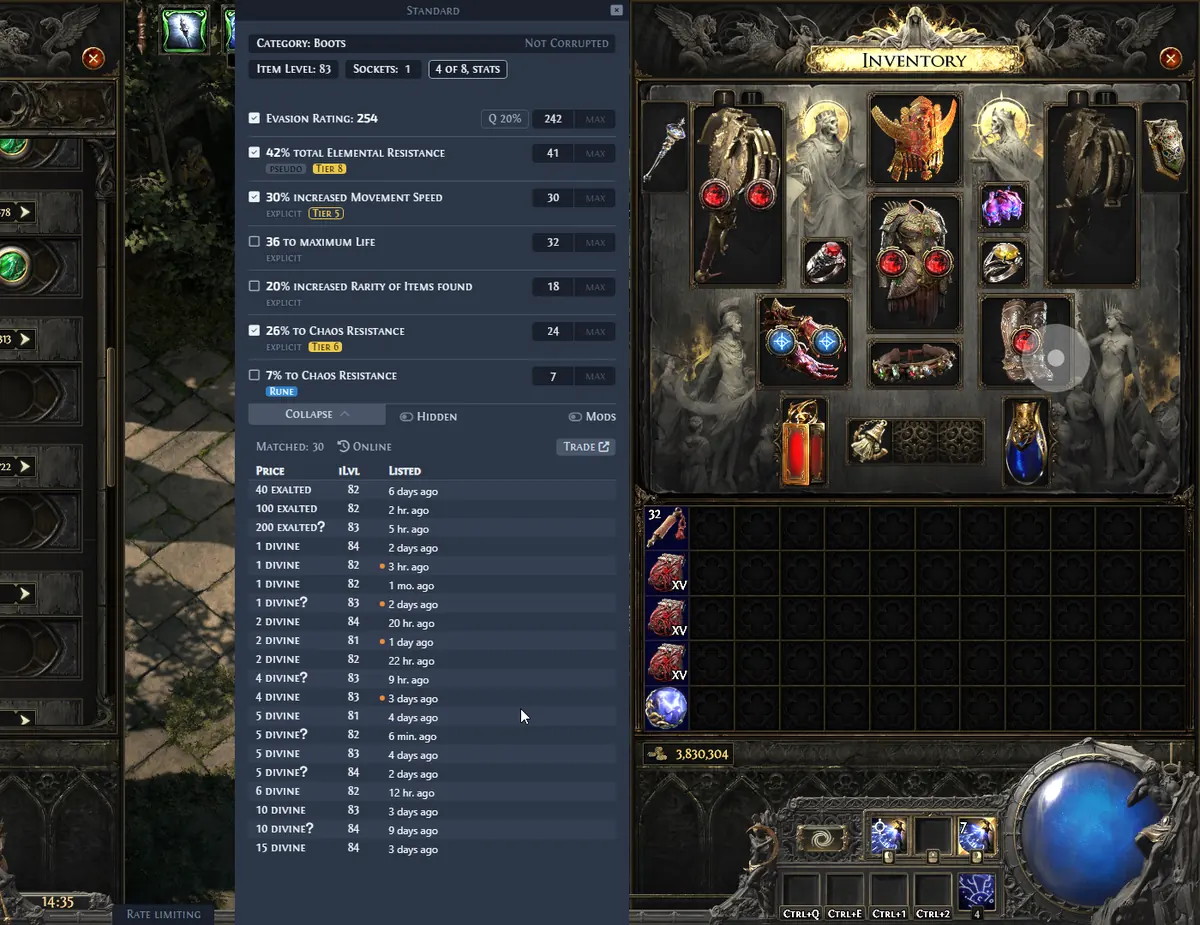
How to Update Exiled Exchange 2: Check Versions
Before replacing files, identify the version currently running and compare it with the latest stable tag on the official GitHub Releases page. This site's homepage also refreshes release data during its static build and displays the release date, file size, filename, and SHA256 for each platform asset.
Do not assume that a new commit in the repository is a new stable desktop release. The master or development branch can move ahead of the packaged version. For normal use, the latest non-draft, non-prerelease GitHub Release is the reliable boundary. Avoid Source code ZIP and TAR archives when you need a packaged application.
Version freshness matters for a trade overlay because league changes and trade service updates can invalidate data or request behavior even when the desktop interface still opens. A release may therefore be important without adding a visible feature.
| Build | Automatic updates | Manual action |
|---|---|---|
| Windows Installer | Yes | Allow the updater to finish, then restart the app. Use the official installer if automatic update fails. |
| Windows Portable | No | Download the new portable EXE and replace the old executable after closing the app. |
| Linux AppImage | Yes | Use the in-app update when available or replace the AppImage while preserving configuration. |
| macOS Universal DMG | No | Download the new DMG and replace the installed application after closing it. |
Update the Windows installer build
The Windows Installer is the recommended build because it supports automatic updates and starts faster than the portable executable. When an update is offered, let the application finish its normal update flow, close old windows if requested, and restart the overlay. Confirm the new version after restart before troubleshooting an old trade-data error.
If the updater cannot complete, close Exiled Exchange 2 from the tray rather than only closing an overlay window. Download the current installer from the verified homepage download list, confirm that the filename contains the latest version, and run it over the existing installation. Reinstalling the app should not require deleting the configuration folder unless the release notes or troubleshooting instructions specifically direct you to reset it.
- 1
Exit the running overlay
Use the tray menu to quit completely. A hidden background process can keep application files locked.
- 2
Verify the official asset
Check the release tag, installer filename, file size, and SHA256. The Windows installer name begins with Exiled-Exchange-2-Setup.
- 3
Run the installer
Proceed only after reviewing the unsigned-app warning and confirming the GitHub source. Keep the default data folder when you want to preserve settings.
- 4
Restart and confirm
Launch the overlay and Path of Exile 2, check the displayed version, and run one normal item search.
Replace the Windows portable, Linux, or macOS build
A portable Windows executable does not update itself. Download the new portable EXE, close the old process, place the new file where you keep the application, and update any shortcut that points to a version-specific filename. Do not overwrite the executable while it is still running. If you maintain several copies, remove or clearly archive older builds so that a shortcut does not reopen the wrong version.
The Linux AppImage supports automatic updates according to the official download table, but replacement remains straightforward when the update path fails: close the app, download the new AppImage, make it executable if required by your desktop environment, and launch the new file. Wayland and Hyprland behavior can involve separate overlay constraints, so an application update does not automatically solve every compositor problem.
The universal macOS DMG does not provide automatic updates. Replace the application with the copy from the latest DMG. Because the project is unsigned, macOS may require the standard Open Anyway procedure again. Verify the official GitHub source before bypassing an operating-system warning.
Preserve and back up your configuration
On Windows, Exiled Exchange 2 stores user data under %APPDATA%\exiled-exchange-2. The apt-data directory contains important configuration such as config.json. Copy that folder to a safe location before a manual reset, before changing between a migrated Awakened PoE Trade setup and a clean setup, or before experimenting with development builds.
A backup is especially useful when a new release coincides with a league launch. If the new app starts but your settings appear missing, first verify that you opened the expected build and Windows user account. Restoring a known configuration is safer than repeatedly copying entire application folders from unrelated versions.
- Back up apt-data before deleting the Exiled Exchange 2 data folder.
- Keep a note of custom hotkeys that may conflict with other software.
- Do not copy an Awakened PoE Trade config without changing the saved window title to Path of Exile 2.
- Keep application executables separate from configuration backups.
- Use release notes to identify migrations or breaking changes before restoring old files.
When an update does not fix the problem
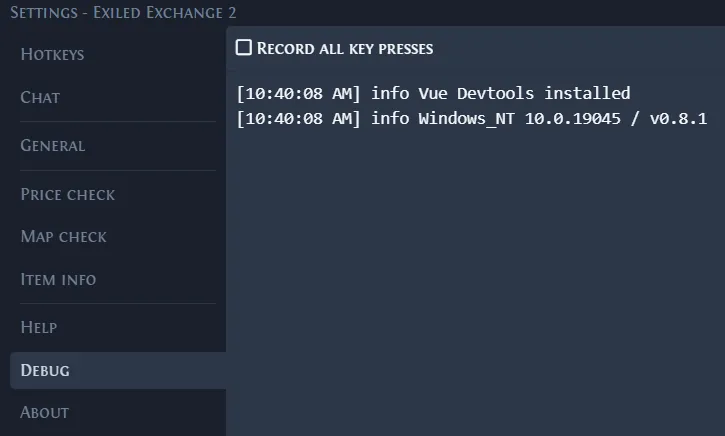
An update cannot fix every failed price check. Exclusive Fullscreen mode, blocked clipboard text, a global shortcut conflict, mismatched administrator privileges, VPN or DNS behavior, and cloud gaming clipboard limitations can all survive a clean reinstall. Open the Debug logs and identify whether the failure happens before item text is parsed, while league data loads, or during a trade request.
If the app reports the new version but the same error remains, follow the Exiled Exchange 2 troubleshooting guide. If a release introduced a regression, search the official repository issues and include the app version, operating system, renderer, logs, and reproducible steps in a report. Do not include account credentials, session cookies, or other secrets in a public issue.
Latest Exiled Exchange 2 Version and Package Choice
At the latest verified build, the stable tag is v0.15.8 (checked 2026-08-10). Use the official Release asset whose filename matches your platform; a source archive or development commit is not an installed update.
The installer and AppImage can use automatic update flows, while the portable executable and DMG require replacement after the running process is closed. Keep an apt-data backup before a manual update so a version change does not become a settings-loss problem.
- Match the asset filename, platform, file size, and SHA256 before opening it.
- Close the tray process completely before replacing a portable file or DMG.
- Keep the configuration backup separate from application binaries.
Current stable build
Download the latest Exiled Exchange 2 installer
The release data and SHA256 are sourced from the official GitHub API. The 15-second handoff opens the current Windows Installer asset.
Download the latest Windows installer